How to bill a freight charge to a customer in Books?
TB Books · expenses · Last updated November 28, 2026 · Version 1
This process works in apps: TB Books
This article will teach you how to record a carrier freight charge, match it on the bank feed, and add it to a work order or invoice.
Freight you pay a carrier is an expense. The customer charge is a billable expense added onto the work order or invoice. The Freight box on a purchase order or bill is a different thing: that amount stays on the purchase. The Shipping box on an invoice is what the customer pays for delivery, and it does not record what you paid the carrier.
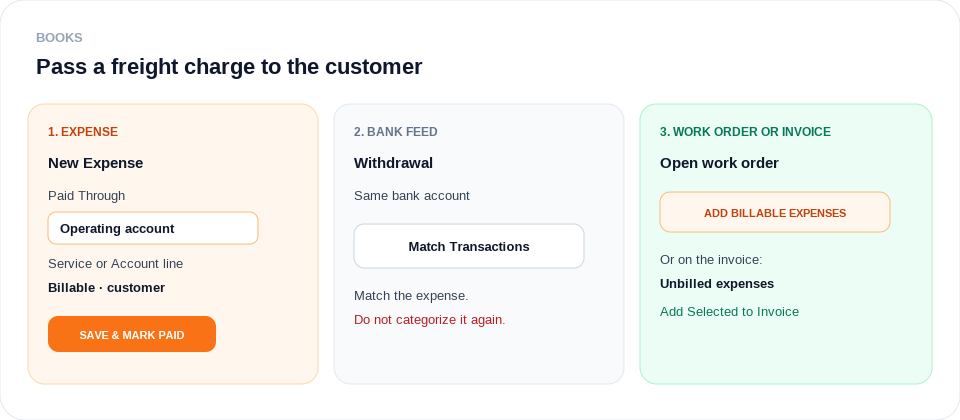
Steps
- Open Purchases → Expenses and click New Expense.
- Set Paid Through to the bank account the freight charge will hit.
- Click Service and pick the freight fee, or click Account and choose the shipping expense account. Enter the amount.
- Check Billable and select the customer. To bill the whole expense to one customer, use Billable Customer (whole expense) instead of the line checkbox.
- Click Save & Mark Paid.
- When the charge appears on the bank feed, open it, choose Match Transactions, and match this expense. Do not categorize that same charge again.
- On an open work order, click Add Billable Expenses. On an invoice, open Unbilled expenses and click Add Selected to Invoice.
Conclusion & best practices
Match the bank line to the expense you already saved. Categorizing it a second time posts the cost twice. The work order has to be Open before Add Billable Expenses appears. Purchase-order freight still belongs on the purchase order or bill, not on this expense.