How are dates shown on dashboards and reports?
TB Books · dashboard · Last updated September 19, 2026 · Version 1
This process works in apps: TB Books, TB POS, TB CRM, TB Reports, TB WMS, TB One
This article will teach you how Tire Base uses one organization timezone for Today, reports, and invoice dates, even when someone logs in from another country.
Dashboards, reports, and document dates use your shop calendar — not the clock on the laptop that is viewing the page. Set that calendar once under Organization Settings → Locations → Organization timezone. A teammate traveling still sees the same Today as the shop. If that field is empty, Tire Base uses the first location timezone, then Pacific Time (PT).
Steps
- Open Settings in Books, POS, CRM, Reports, WMS, or One. Under Organization Settings, open Locations.
- At the top of Locations, find Organization timezone. The helper text says dashboards and reports in every app use this calendar, even when someone logs in from another country.
- Choose the shop timezone (for example Pacific Time (PT)). It saves when you pick it. You may see Saving… briefly.
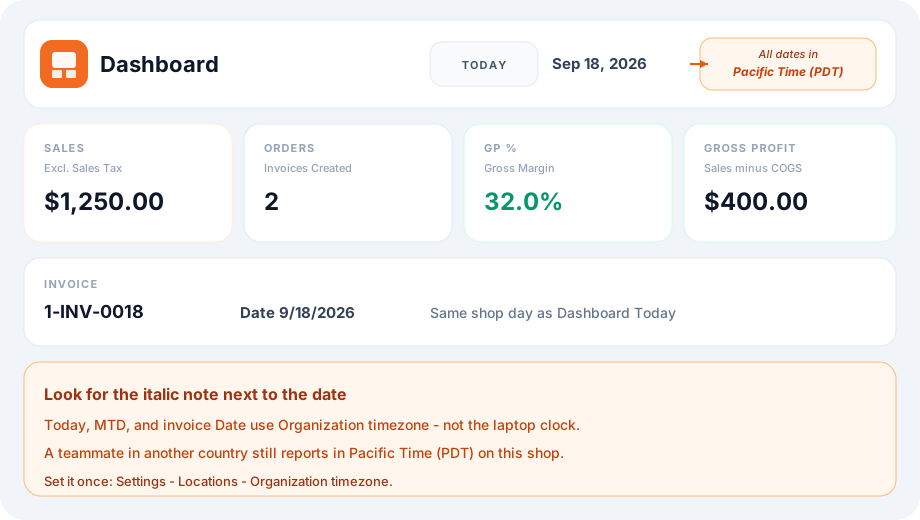
- Open Dashboard in Books (or POS / CRM). Pick Today, MTD, or another preset. Read the date next to the preset (for example Sep 18, 2026).
- Confirm the italic note beside those dates: All dates in Pacific Time (PDT) (the letters change with daylight time, such as PST).
- Open an invoice (or a report) for that same day. The document Date should match Dashboard → Today in that organization timezone — not the viewer’s laptop day.
- If Today still looks a day off, an admin should change Organization timezone rather than the computer clock. Do not create a second company to “fix” dates.
Conclusion & best practices
One organization timezone for every app. Traveling staff keep reporting in the shop day. Related: How to use the Books dashboard? · How to change a report date range?.