Why is a payment missing from Match Transactions?
TB Books · banking · Last updated November 28, 2026 · Version 1
This process works in apps: TB Books
This article will teach you why a customer payment in Undeposited Funds does not appear on a checking account, and how to move it onto that bank so you can match it.
Match Transactions on a bank account lists money that already posted to that bank. A normal cash, check, or card payment posts to Undeposited Funds until you deposit it. That payment is on the books, and it still will not show on the checking feed. Change Deposit To when the money is already in that bank. Use Bank Deposits when the money is still in the drawer or in a batch you are taking to the bank.
Steps
- Open Orders → Payments Received and open the payment.
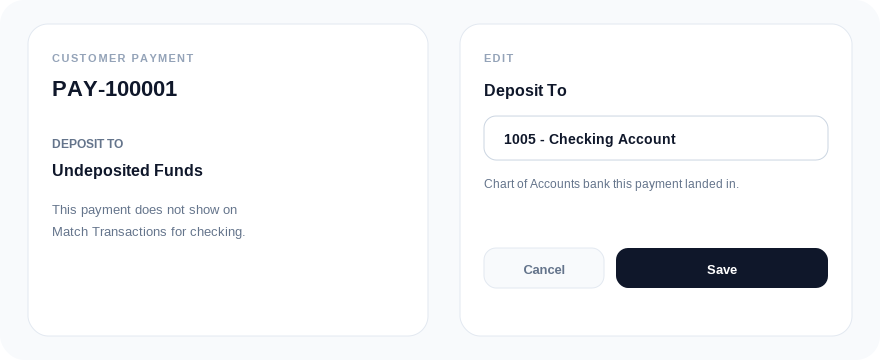
- Read Deposit To. Undeposited Funds means this payment is not on the checking account yet, so Match Transactions will not list it.
- If that money is already in the bank, click Edit. Change Deposit To to that bank account (for example Checking Account). Click Save. Open the bank line and choose Match Transactions. The payment is in the list.
- If the money is still in the drawer or in a batch, leave Deposit To as Undeposited Funds.
- Open Banking → Bank Deposits. Select the payments in that batch. Choose the bank account. Click Process Deposit.
- Open Banking → Bank Feeds, open the bank line, and choose Match Transactions. Match the deposit, not each payment inside it.
- Select rows until the difference is $0.00. If a card fee makes the bank line smaller, click Add Adjustment, choose Bank & Card Fees, then click Match.
Conclusion & best practices
Match the bank line to the deposit that landed in that account. A payment left in Undeposited Funds is waiting for that deposit. Do not categorize the same bank line again after you match it. Related: How to record a bank deposit in Books? · How to match a bank transaction that includes a card fee?