How to see who bought one tire, the price, and the date?
TB Books · inventory · Last updated November 28, 2026 · Version 1
This process works in apps: TB Books, TB POS, TB WMS
This article will teach you how to open Quick Unit Tracking from the product quantity and read the customer, the sale price, and the date.
Quick Unit Tracking is the sale history of one product. A shop asking for the historial de venta of a llanta wants the cliente, the precio, and the fecha. Click the quantity on that product. The report lists who it was sold to, the price, and the date. It is not a search through invoices, and it is not DOT registration.
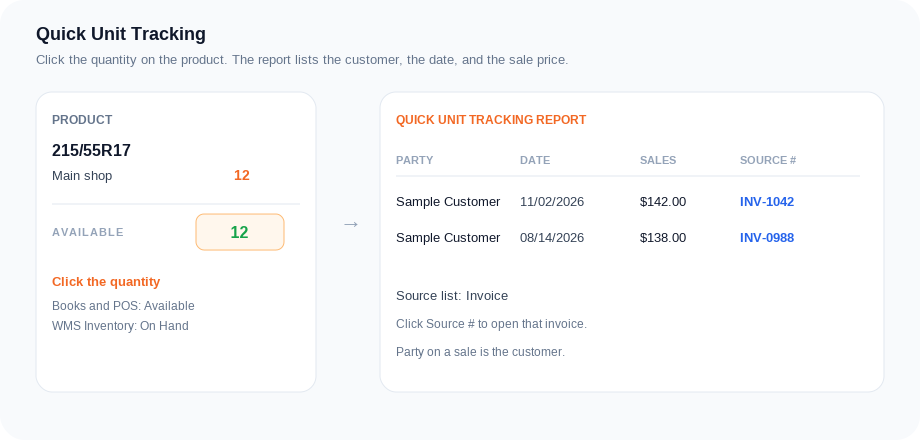
Steps
- In Books or POS, search the tire. On the product card, click the number next to Available, or click one shop’s quantity. In WMS, open Inventory and click the On Hand number.
- Quick Unit Tracking Report opens for that product.
- Party is the customer on a sale and the vendor on a bill. Date is when the quantity moved. Sales is the price on a sale. Source # is the invoice or bill number.
- Click Source # to open that invoice or bill.
- Set the source list to Invoice when you only want sales. Bill, Inv. Count Adj., and Internal Move stay in the same report.
- Use this report for one product. Do not look through invoices one by one. DOT numbers and tread depth are a different setting and do not list the buyer.
Conclusion & best practices
The quantity on the product card is the way into this history. Party, Date, and Sales answer who bought it, when, and for how much. Open the guide at https://tirebase.io/help/articles/books-unit-tracking.