How to set a customer price exception?
TB Sync · customers · Last updated November 27, 2026 · Version 1
This process works in apps: TB Sync, TB Books, TB POS
This article will teach you how to give one customer a special price by brand, model, or part number, with a start date and an end date.
A price exception replaces that customer’s price level for the products you name, and only between the start and end dates. It does not change the price level, and it does not change what other customers pay. A promotion changes the price for everyone on a price level. A coupon waits for a code at checkout. Use an exception when one account has a negotiated price.
Steps
- Open the customer in Sync or Books.
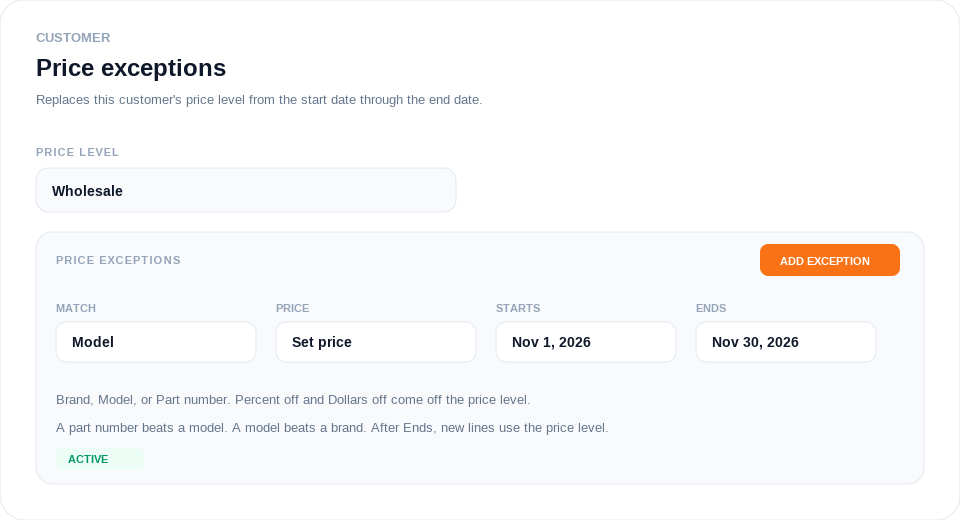
- Under Price Level, find Price exceptions and click Add exception.
- Choose Match: Brand, Model, or Part number. For a model, enter the brand and the model. For a part number, enter the part number.
- Choose Price: Set price, Percent off, or Dollars off, and enter the amount. Percent off and dollars off come off the price-level sell price.
- Set Starts and Ends. The end date is included. Click Save exception, then save the customer.
- While the dates are open, B2B search, a Books invoice, and a POS line for this customer use this price. A part number beats a model. A model beats a brand.
- After the end date, a new search or a new line uses the price level again. The exception stays on the customer and shows Expired.
- A quote, order, or invoice that was already saved keeps the price written on the line. Adding the part again after the end date uses the price level.
Conclusion & best practices
Do not use a coupon for a negotiated account price. The portal would still show the price-level price until someone entered the code. A promotion is the right tool when every customer on that price level should get the dated price. Confirm the exception with a test search in the customer’s B2B portal before you tell them it is live.