How to count cartons, boxes, and pieces in WMS?
TB WMS · inventory · Last updated November 10, 2026 · Version 1
This process works in apps: TB WMS, TB Books
This article will teach you how to set a product’s packages on the product, then count, receive, adjust, and print labels in those packages.
Some vendors ship a part by the piece, but the warehouse stores it in cartons. A carton can hold boxes, and each box holds pieces. Tire Base keeps one quantity on the product, in pieces, in the same catalog Books and WMS already share. Packages are a faster way to count and label that quantity.
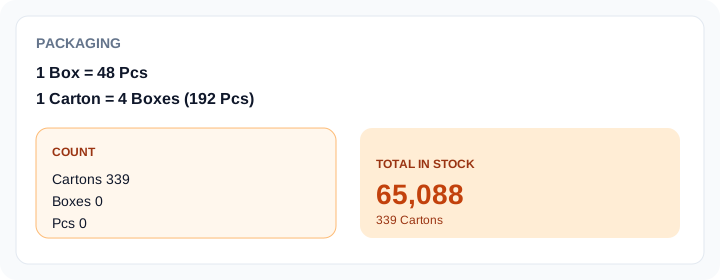
Example: 339 cartons × 4 boxes × 48 pieces = 65,088 pieces. The stock number stays 65,088. The count screen shows 339 cartons.
Steps
- Open the product in WMS Inventory or Books Products and edit it. Packaging is on the product, so every app sees the same packages.
- Set the base unit (Pcs, Strip, or Each). Add a level such as 1 Box = 48 Pcs, then 1 Carton = 4 Box. Save.
- On Quick Lookup, the total shows the piece count and the package breakdown. Edit packaging from that card when a counter finds the product is packed.
- During Audit / Count, a packaged product asks for cartons, boxes, and loose pieces. Scanning the carton barcode adds one carton. The saved count is still pieces.
- On a receipt or Quick Adjust, pick the unit before you enter the quantity. 2 cartons posts 384 pieces when a carton is 192.
- Print Label can print a piece label or a carton / box label. The package label’s barcode is that package, so the next scan counts the carton.
Conclusion & best practices
Define packaging once on the product. Stock, purchase orders, and count variances stay in pieces. A package deal — items you sell together, such as an oil change — is a different feature. Build that in TB POS → Lookup → Packages or TB Books → Inventory & Services → Packages. See How to add a package deal in POS? and How to add a package deal in Books?.